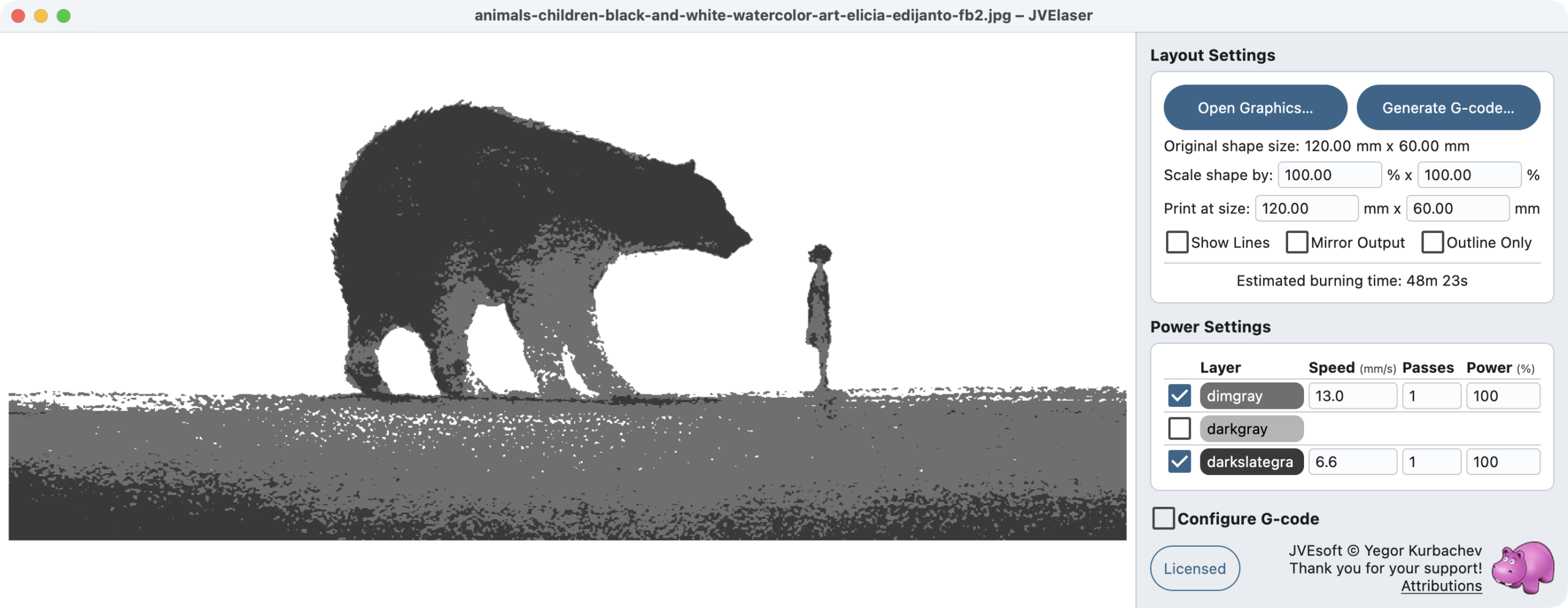
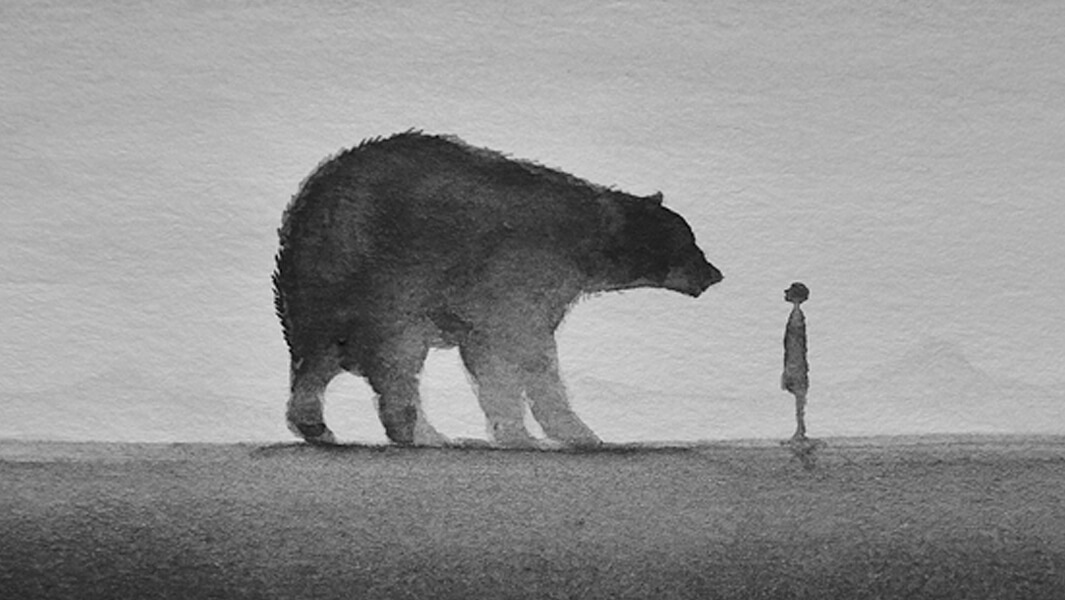
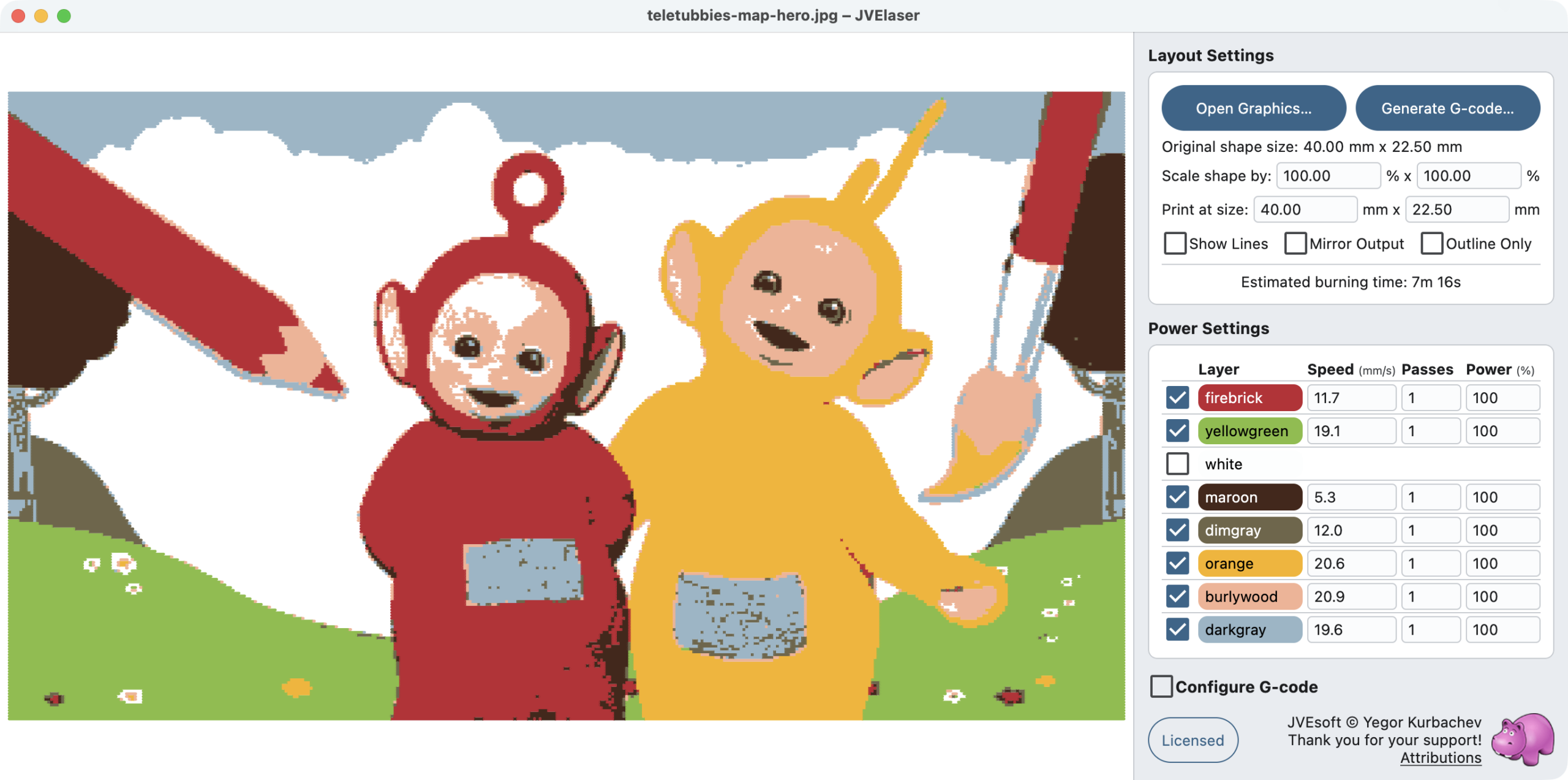
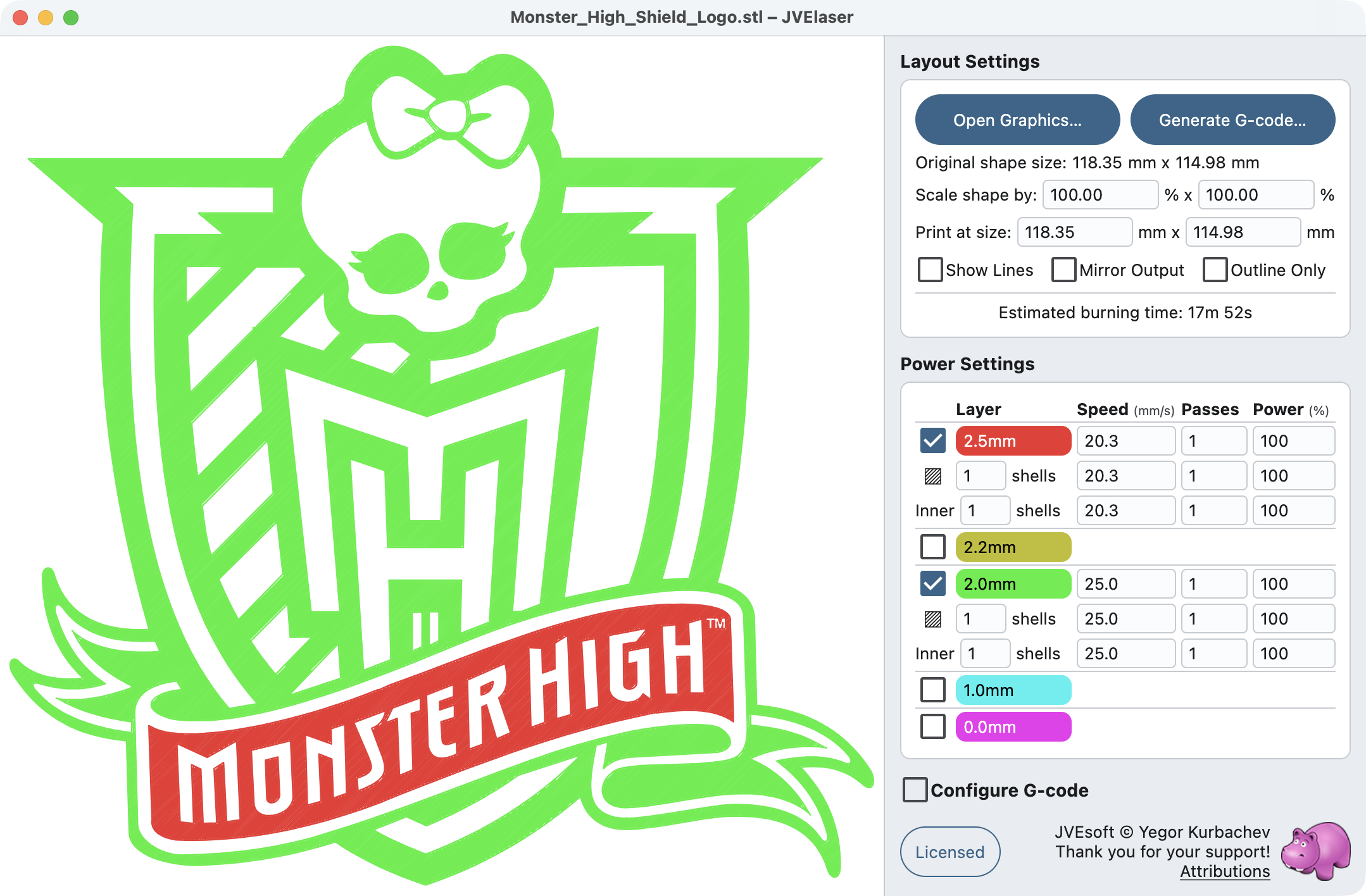
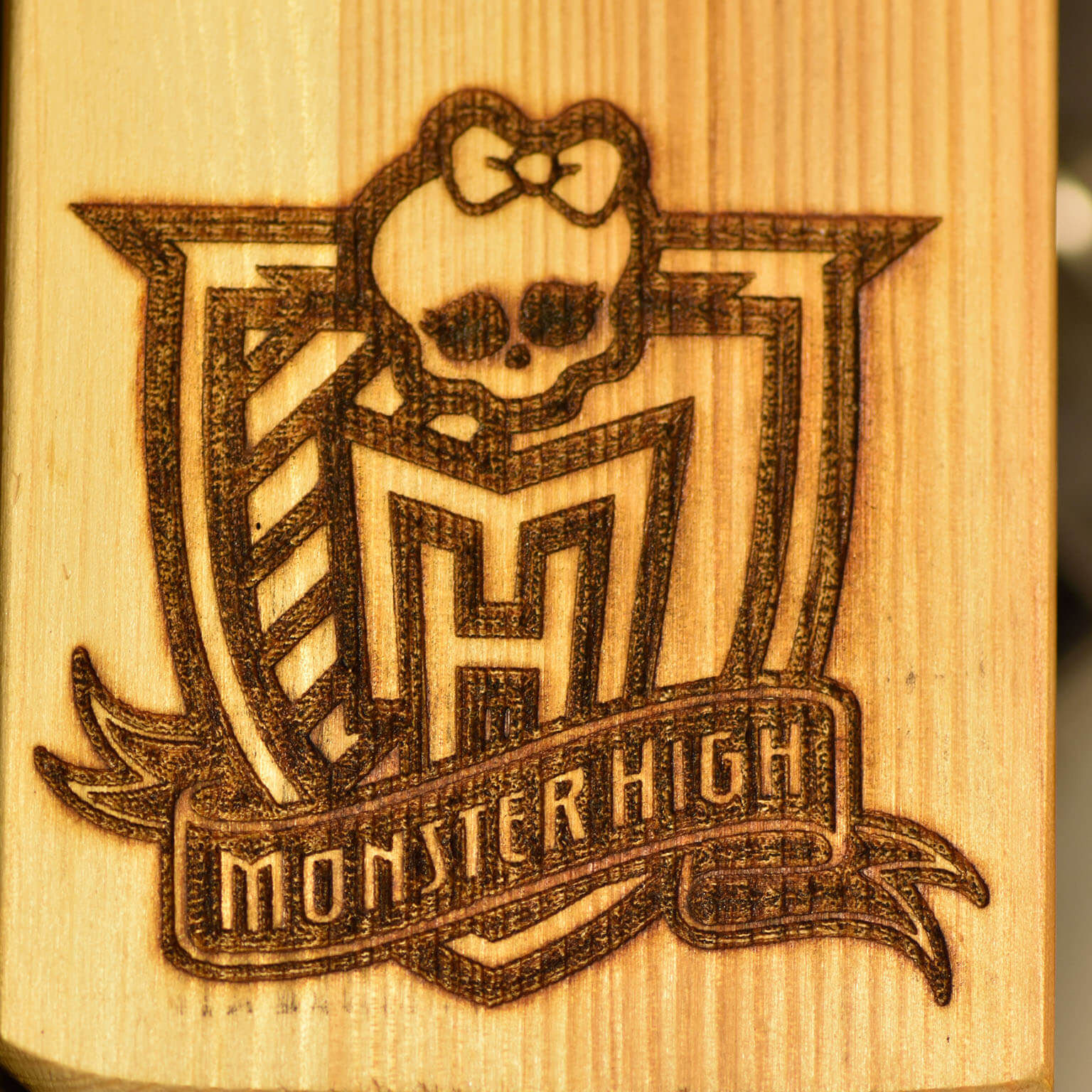
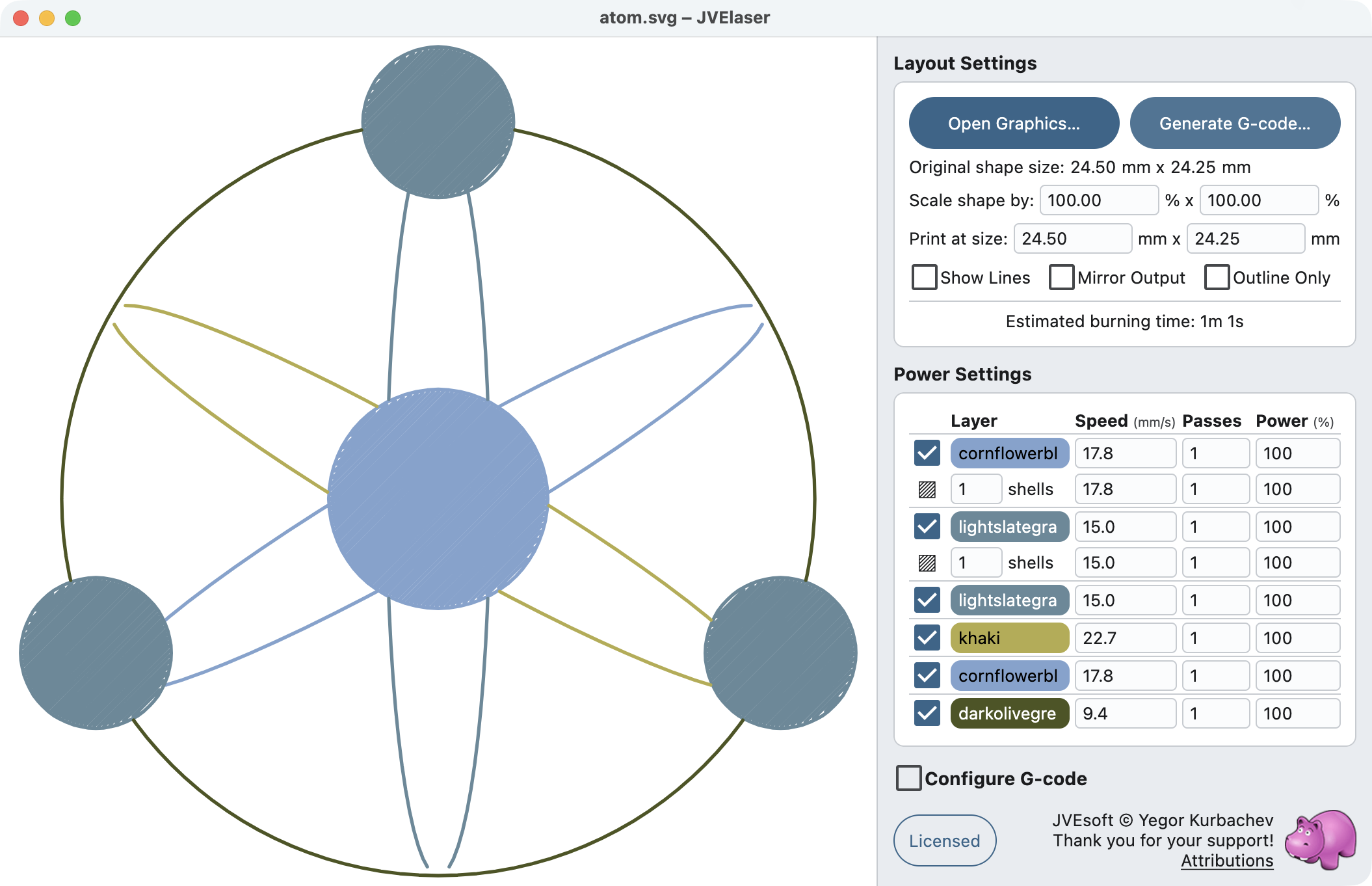
When you open a JPG or PNG image, JVElaser will analyze the image and detect its primary colors.
Each primary color will be presented as a separate layer, for which you can choose burning
configuration or select whether the layer is being printed.
Notice, how the primary colors of the picture are detected and suggested for different burning
styles.
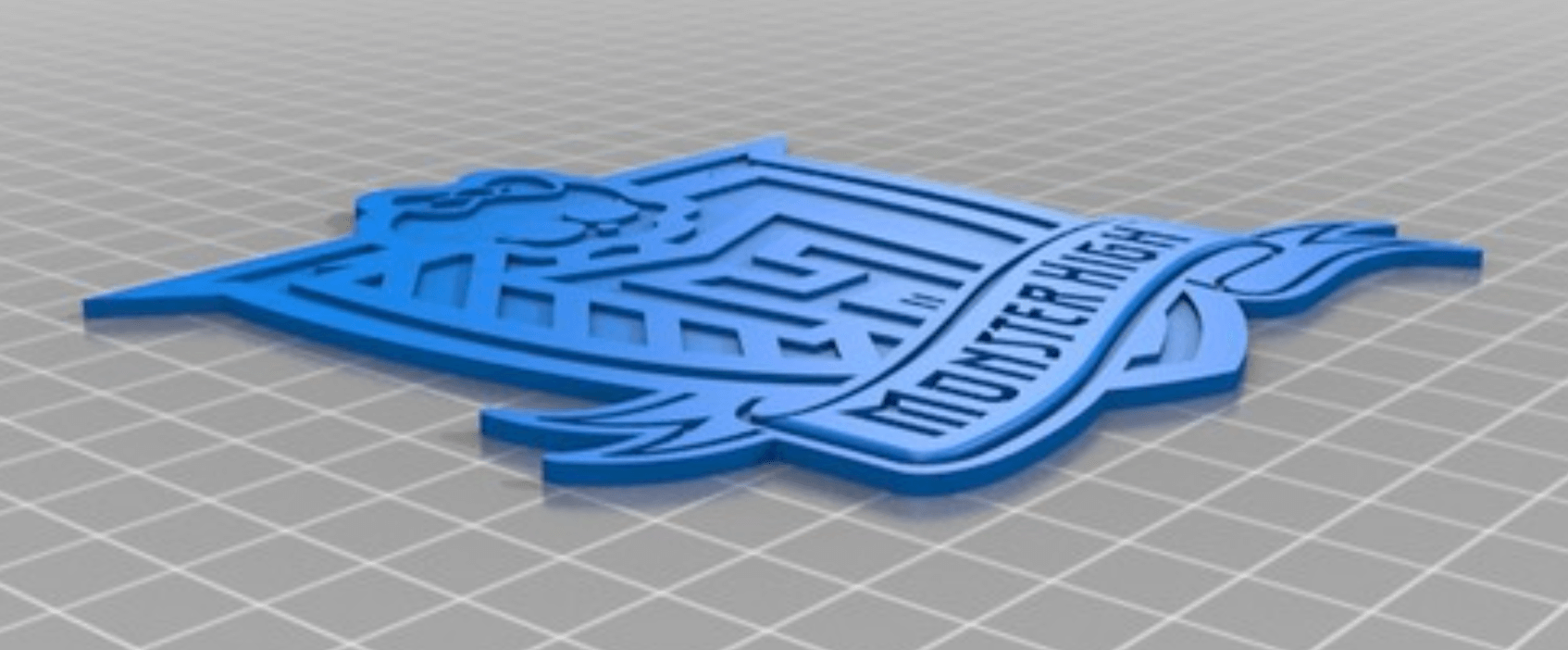
Stereolithography
Lots of interesting objects are available as 3D objects on popular sites, like
https://www.thingiverse.com. Many of them are actually
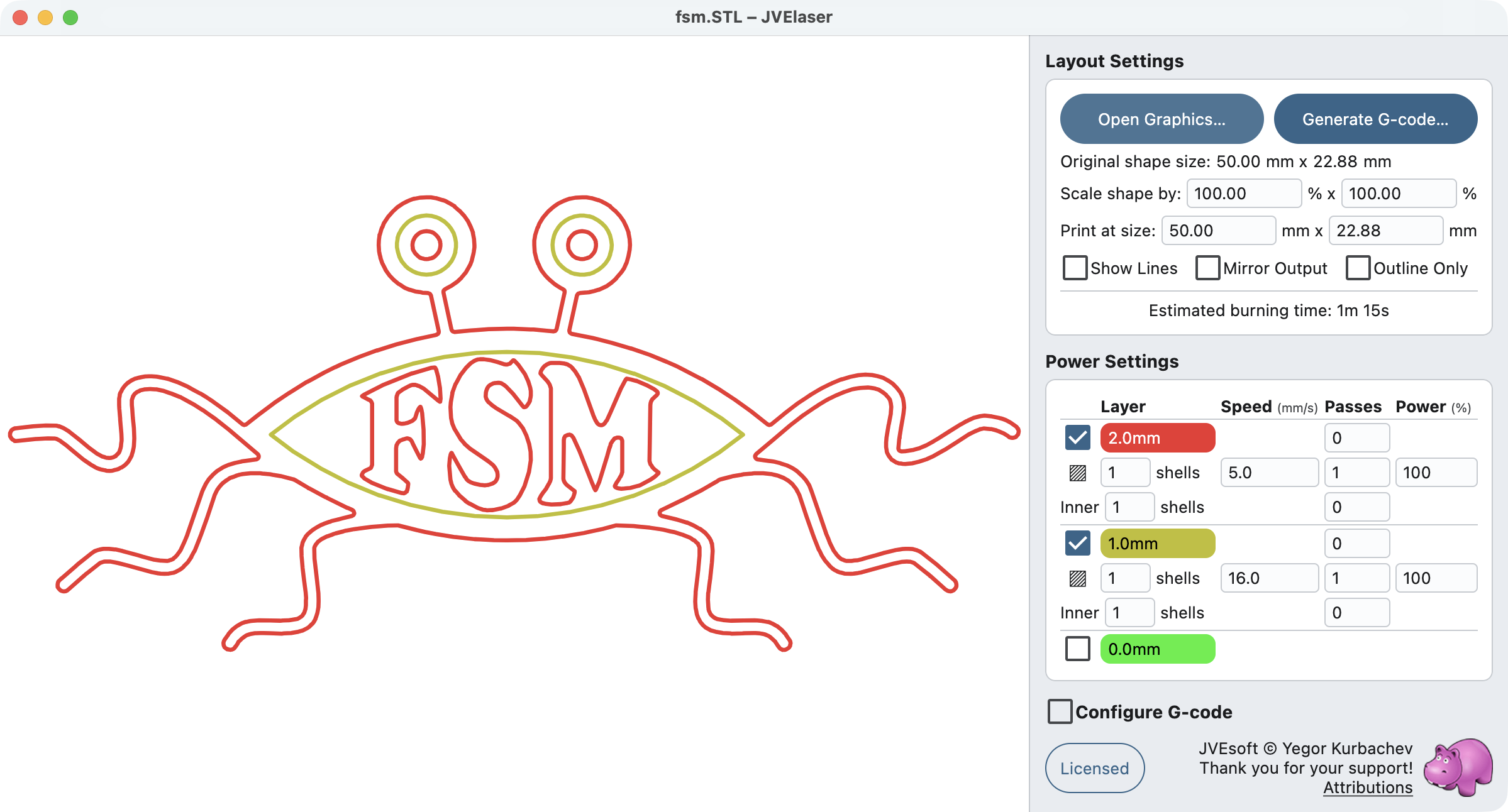
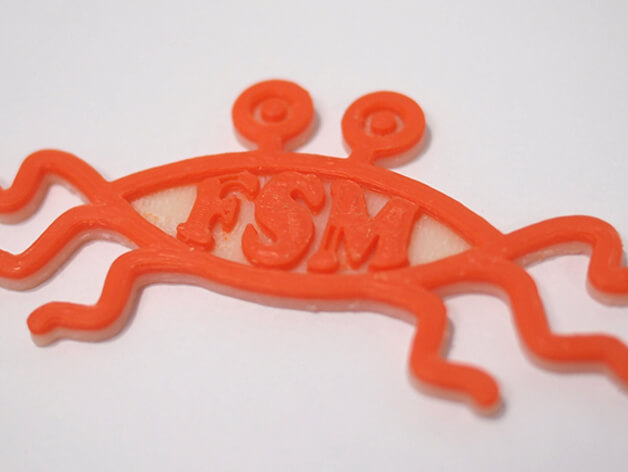
relatively flat and JVElaser allows you to burn them, instead of printing.
STL files usually contain information about the size of the object being printed; JVElaser will
suggest that as the default burning size (which you can override).
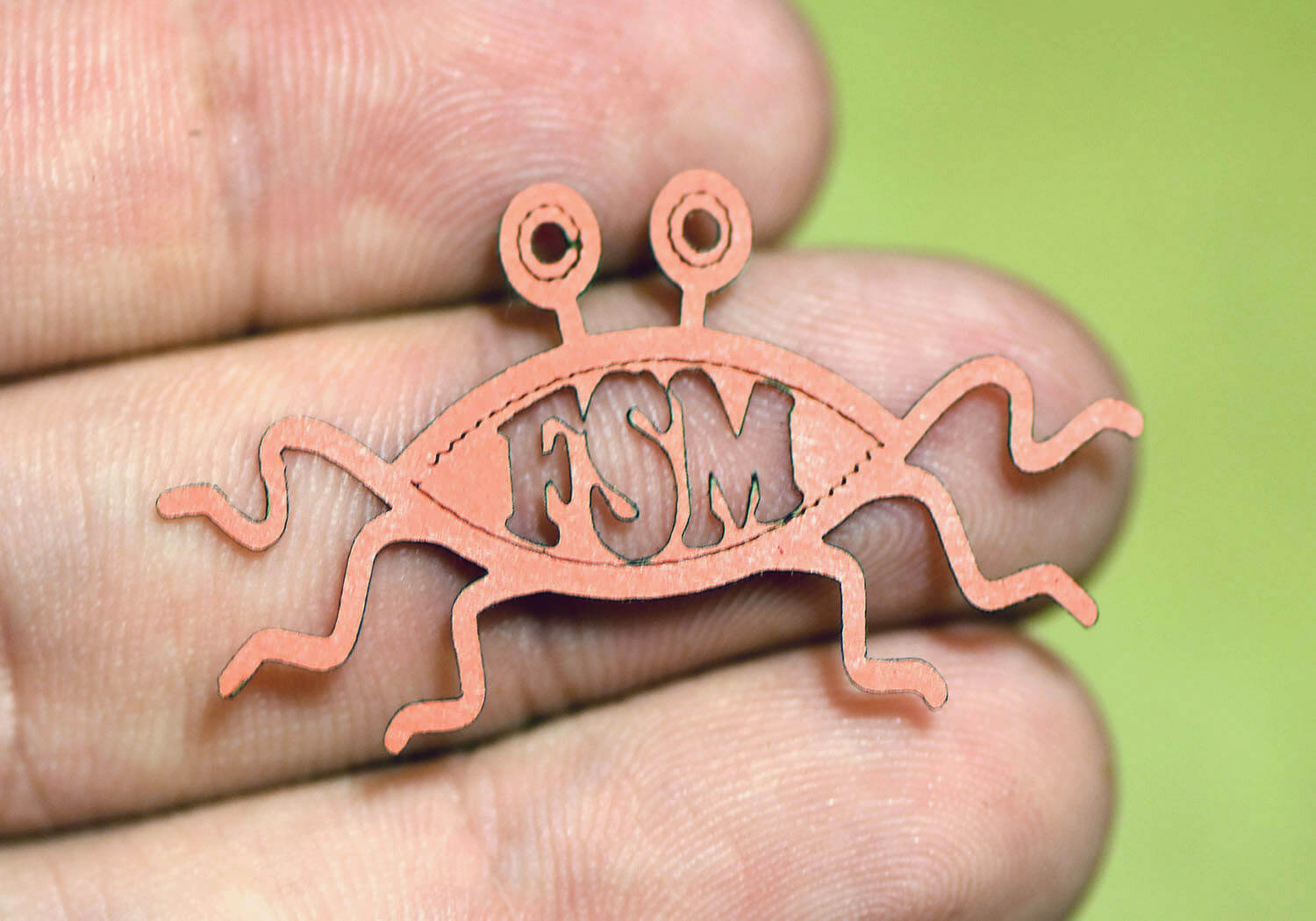
Another example is the Flying Spaghetti Monster, available at
https://www.thingiverse.com/thing:44353.
Notice, it is being cut out of paper, while careful speed selection allowed us to write on the paper
with the laser beam, without cutting it.
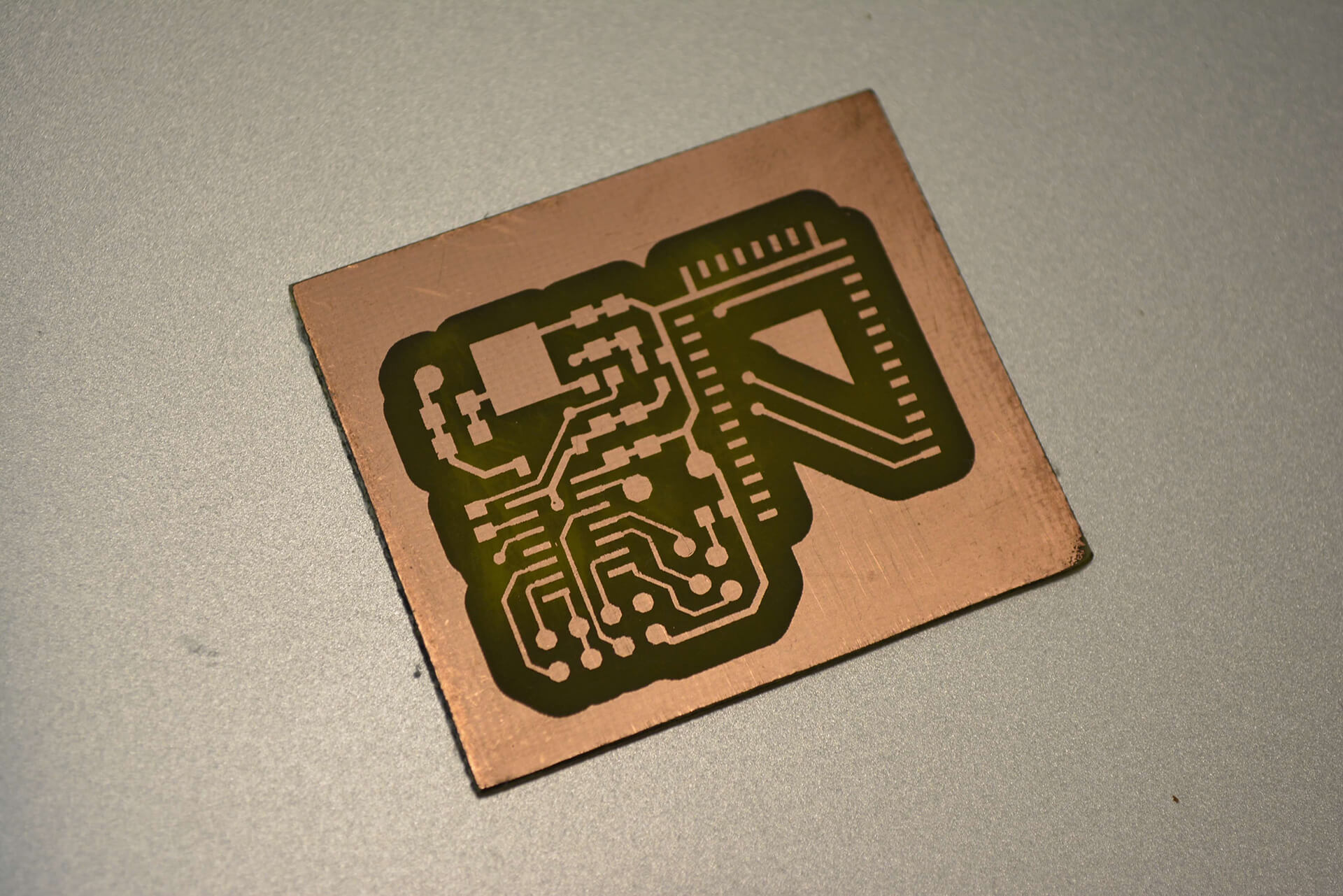
You would first need to create your PCB layout in any software, capable of exporting a standard
Gerber file.
Vector
Vector graphic files are support by JVElaser in the SVG format. The support is not full featured
(with the main limitation being missing text output support), by enough of the format is supported
to provide output for most files.
Some, but not all, vector files contain information about the desired output size; if that’s the
case, JVElaser will suggest that size by default (which could be overridden).
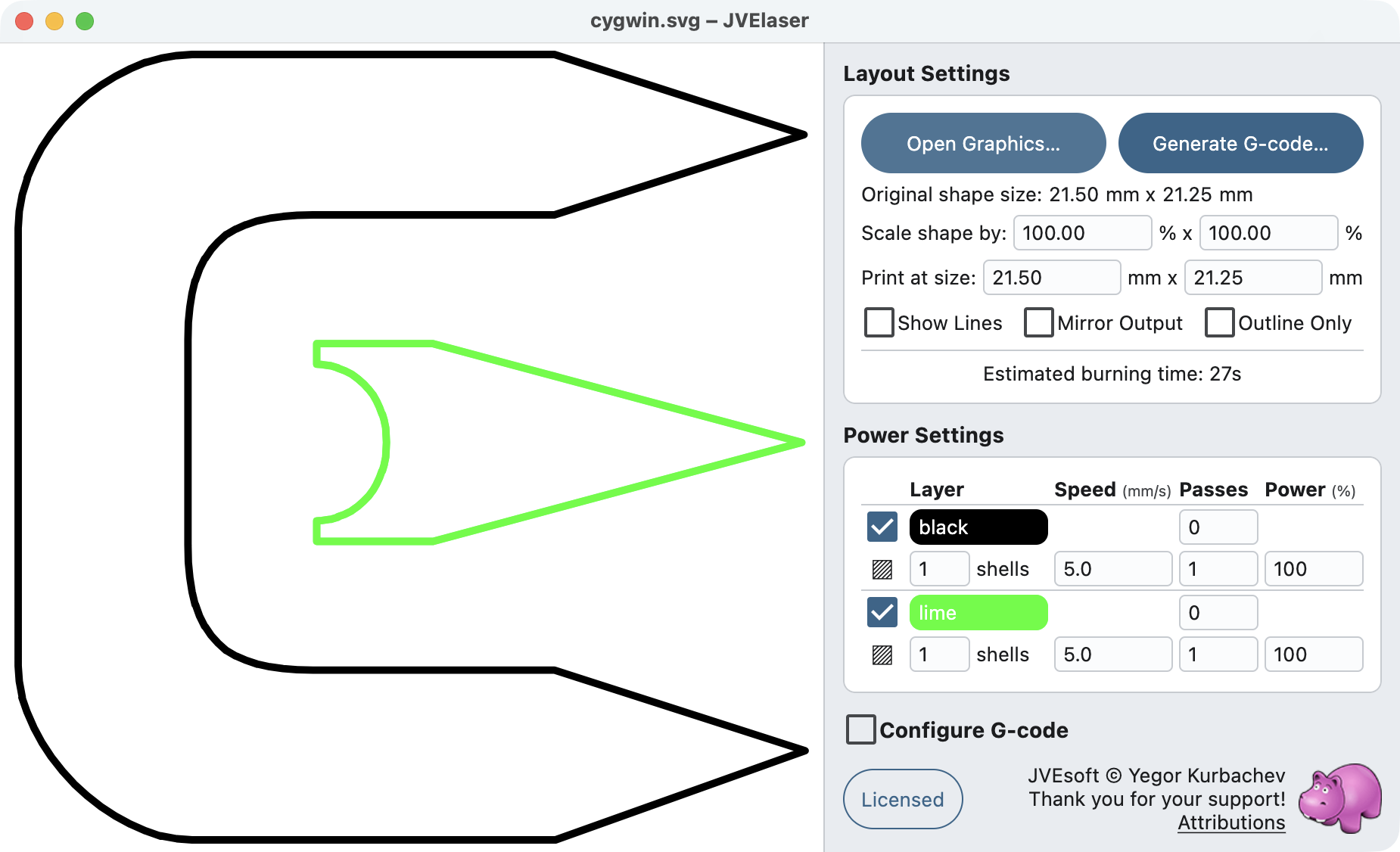
When opening a vector file, separate layers are created based on the elements’ colors, opacities and
stroke widths. The name of the layer includes, in addition to the layer’s color, the desired stroke
width.
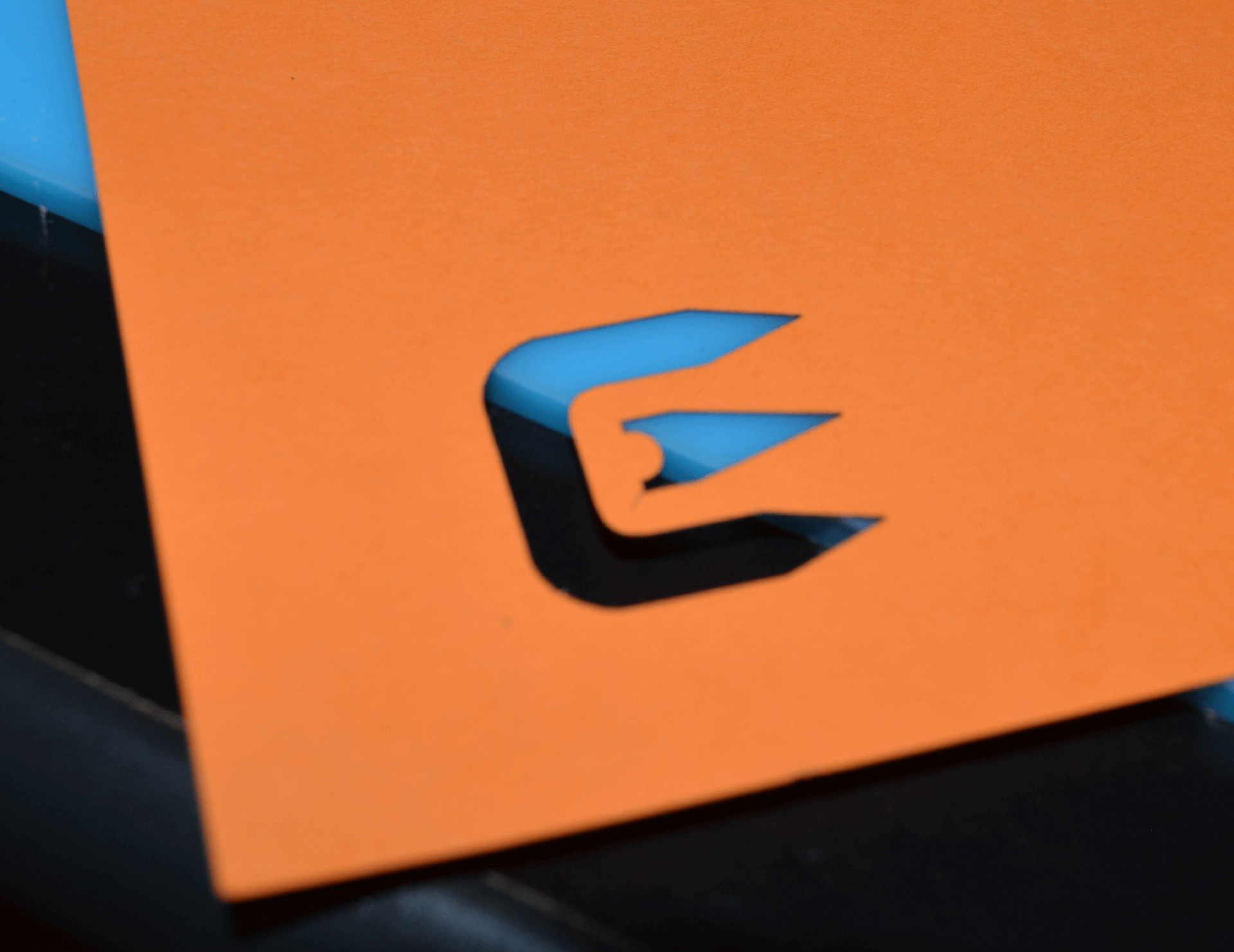
In this example we are using the edges of the Cygwin logo to cut a piece of paper (you can use this
method, for example, to create stencils for spray paint).
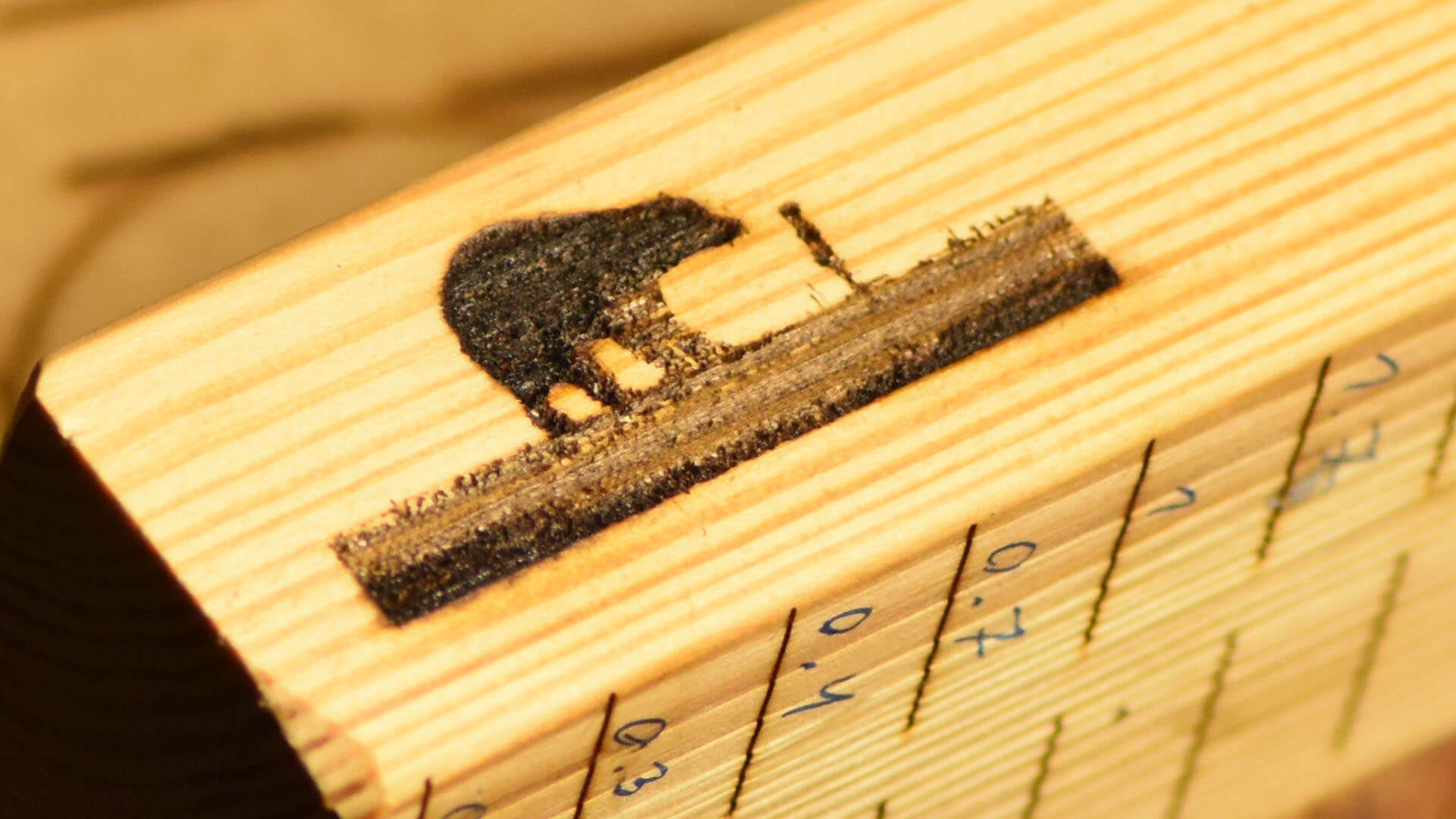
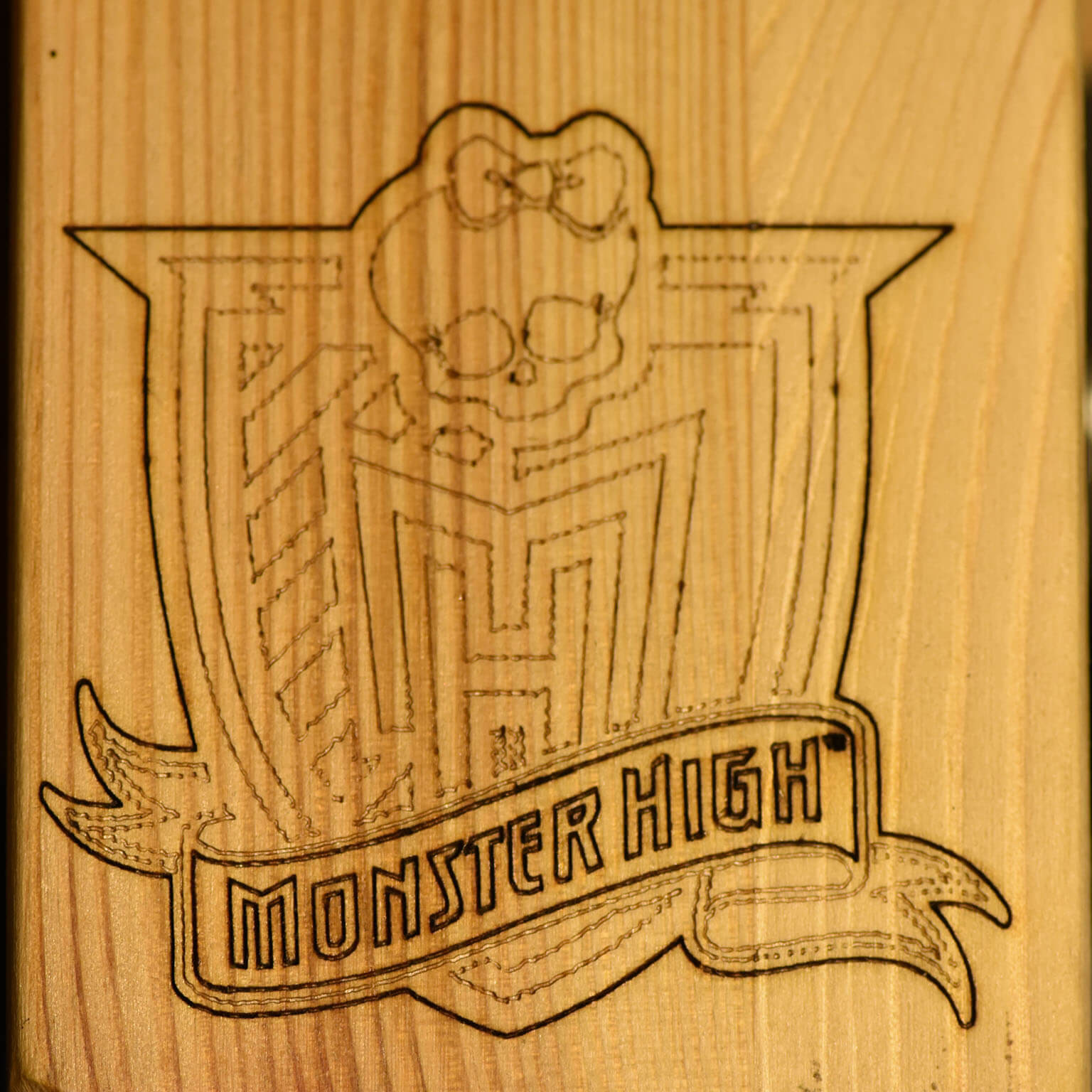
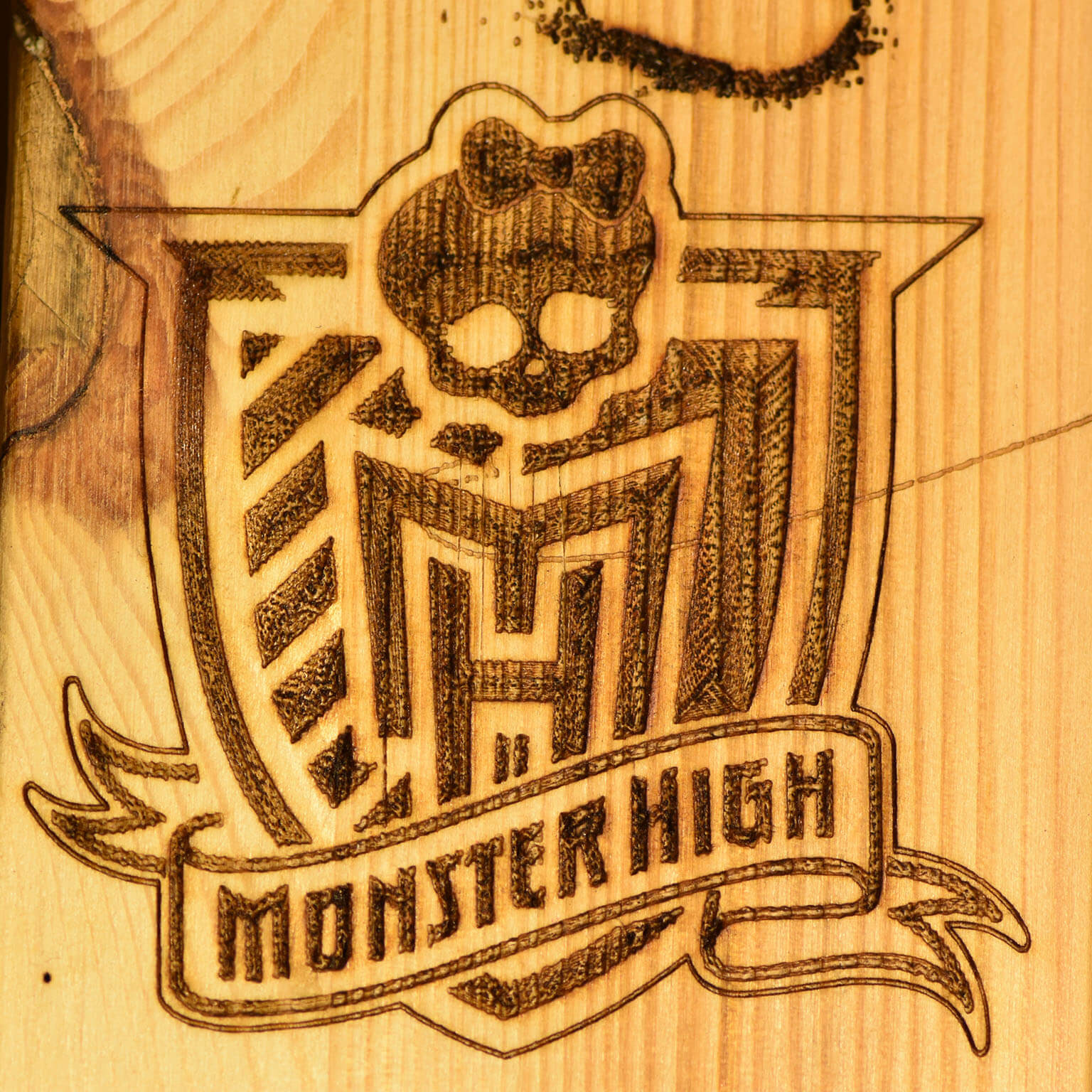
And in this example we have engraved a demo image on a piece of wood.